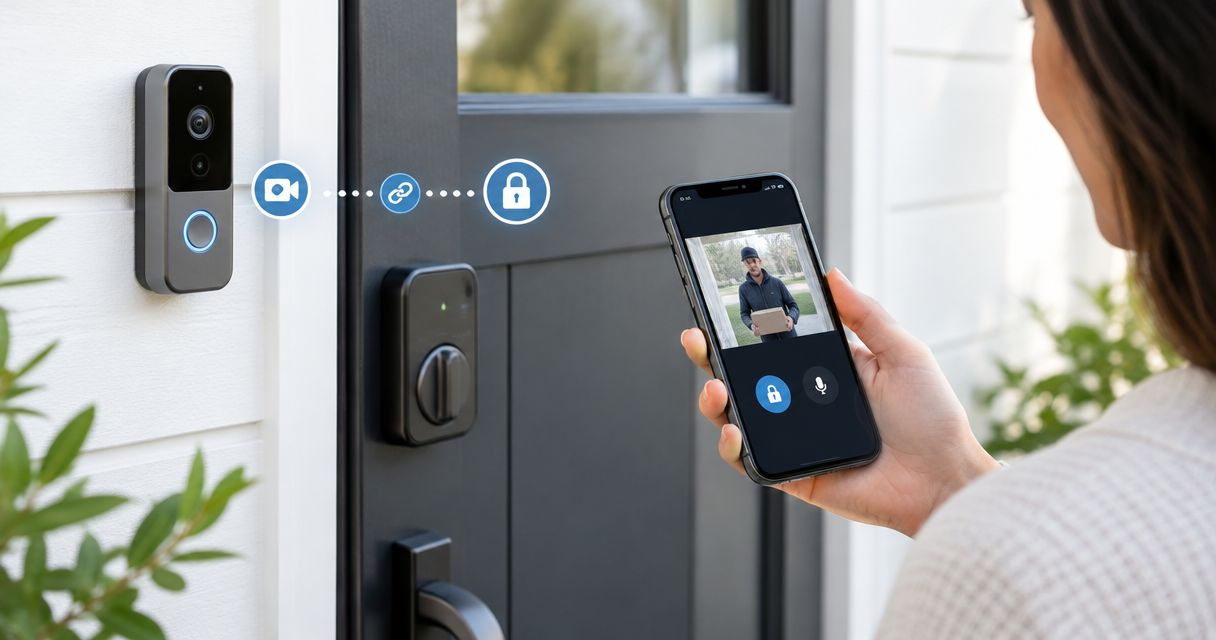
Instead of walking to the door for every visitor, connect your video doorbell and smart lock through a supported app so you can check the live view, confirm who's there, and approve entry remotely. Start with compatibility and door alignment; Apex Lock N Key provides licensed locksmith services for homeowners in Middlesex County, Massachusetts.
- To connect video doorbell to smart lock for remote entry, verify support for your exact devices and app.
- Use live video to identify visitors, then approve unlocking manually; a doorbell press should not grant access.
- Test remote unlocking over cellular data, not just your home's Wi-Fi.
- Apex Lock N Key provides licensed locksmith help in Middlesex County; app compatibility requires a separate check.
Why this matters
A video doorbell shows who's outside. A smart lock controls the deadbolt. Connecting their workflows does not necessarily mean the devices communicate directly: a supported app can bring both controls together, or you can use separate apps in sequence.
Keep the decision to unlock in your hands. Motion detection, a doorbell press, and a familiar-looking face are not permission to enter. Speak with the visitor before releasing the lock.
For a 2026 setup, check current manufacturer instructions against the exact model numbers. Support for a brand name alone does not establish that your particular lock can unlock from your particular doorbell's live-view screen.
Apex Lock N Key is best for Middlesex County homeowners who need hands-on locksmith help with door hardware. Physical lock work and app integration are separate jobs; completing one does not prove the other works.
Before you start
- Accounts and permissions: Have administrator access to both device accounts, your home network, and any hub or bridge required by the lock's manufacturer. Use individual household accounts rather than sharing the administrator password.
- Working hardware and backup entry: Confirm that the doorbell streams video and the lock operates locally. Keep the manufacturer's supported backup-entry method available, and obtain owner approval before changing hardware in a rental.
- The compatibility gotcha: Confirm remote unlocking specifically—not merely device discovery, voice control, or lock-status viewing. A Bluetooth-only connection near the door does not establish access from outside your home.
Do not remove your existing backup access until the complete workflow passes testing. Keep someone inside during closed-door tests so a setup mistake does not leave you locked out.
Choose your connection route
There are 3 practical routes. Choose the simplest one that supports your exact hardware and preserves deliberate approval before unlocking.
| Connection route | Best for | Advantage | Limitation |
|---|---|---|---|
| Native integration | Homeowners whose manufacturers explicitly support the device combination | Provides the supported doorbell-and-lock workflow described by the manufacturer | Support depends on exact models, account permissions, and required hardware |
| Shared home platform | Households with both devices supported in an existing platform | Brings supported controls into a common interface | Video viewing, lock status, and unlocking require separate compatibility checks |
| Separate apps | Homeowners without a supported combined interface | Lets you check video and then use the lock's own remote control | Requires switching apps; the devices are not directly integrated |
Choose native integration when the exact combination is documented. Use a shared platform only after confirming the functions you need. Separate apps remain a practical fallback when both devices work remotely on their own.
For your 2026 compatibility check, write down the doorbell model, lock model, required bridge or hub, and intended app. Check each manufacturer's current support documentation rather than relying on a retailer's broad smart-home description.
Device readiness
Confirm the door and lock work locally
- Open the door and operate the deadbolt using its interior control. Check that the bolt travels freely without scraping or stopping.
- Close the door and repeat the check. If you must lift, push, or pull the door to move the bolt, correct the alignment before configuring remote entry.
- Complete the lock manufacturer's installation and calibration procedure. Keep the door in the position that procedure specifies.
- Open the doorbell's own app and verify that live video and visitor audio work before adding another platform.
Expected result: The lock works without force, and the doorbell shows a usable live view. Neither device depends on the integration to perform its basic job.
A motorized lock cannot correct a misaligned strike or a sagging door. If the deadbolt binds, address the hardware first; the electronic deadbolt installation guide covers the next part of that work.
Confirm remote operation separately
- Follow the lock manufacturer's procedure for enabling remote access, including any required bridge or hub.
- Turn off Wi-Fi on your phone and use cellular data. Keep another person inside while you test.
- Request a lock-status update, then perform an approved unlock and relock through the lock's own app.
- Open the doorbell app over cellular data and check live video and audio again.
Expected result: Both devices work from outside the home network. If either fails independently, stop here and fix that connection before linking accounts.
Account connection and permissions
Connect the supported device accounts
- Open the app specified by the documented integration. Follow its current device-linking procedure; menu names differ between manufacturers and app versions.
- Sign in to the correct device account when prompted. Confirm that the account owns or administers the intended front-door device.
- Review the requested permissions before authorizing access. Check whether the connection permits viewing, status reporting, locking, unlocking, or a combination.
- Select the intended lock and doorbell if the setup presents multiple devices. Give each a distinct, location-based name without including your private address.
- Return to the app and check that each selected device appears under the intended household or property.
Expected result: The integration shows the correct devices, with the permissions described by its documentation. Seeing a lock listed is not yet proof that remote unlocking works.
Avoid granting every household member administrator access just to make setup easier. Assign only the access each person needs, and enable account security features such as two-factor authentication where supported.
Verify the available controls
- Open the connected doorbell view and identify which lock functions are actually available.
- Check whether the interface offers unlocking, locking, status only, or a link to another app. Use the manufacturer's documented control labels rather than assuming every lock icon does the same thing.
- Complete any required authentication before testing the unlock command. Do not disable a security prompt merely to shorten the workflow.
- If unlocking is not supported in that interface, use the separate-app route instead: view the visitor first, then open the lock's app.
Expected result: You know exactly where to view the visitor and where to approve entry. Unsupported controls are not part of your plan.
During a 2026 setup, preserve any authentication safeguards required by the supported integration. Do not substitute an unofficial workaround that bypasses them.
Visitor approval and remote testing
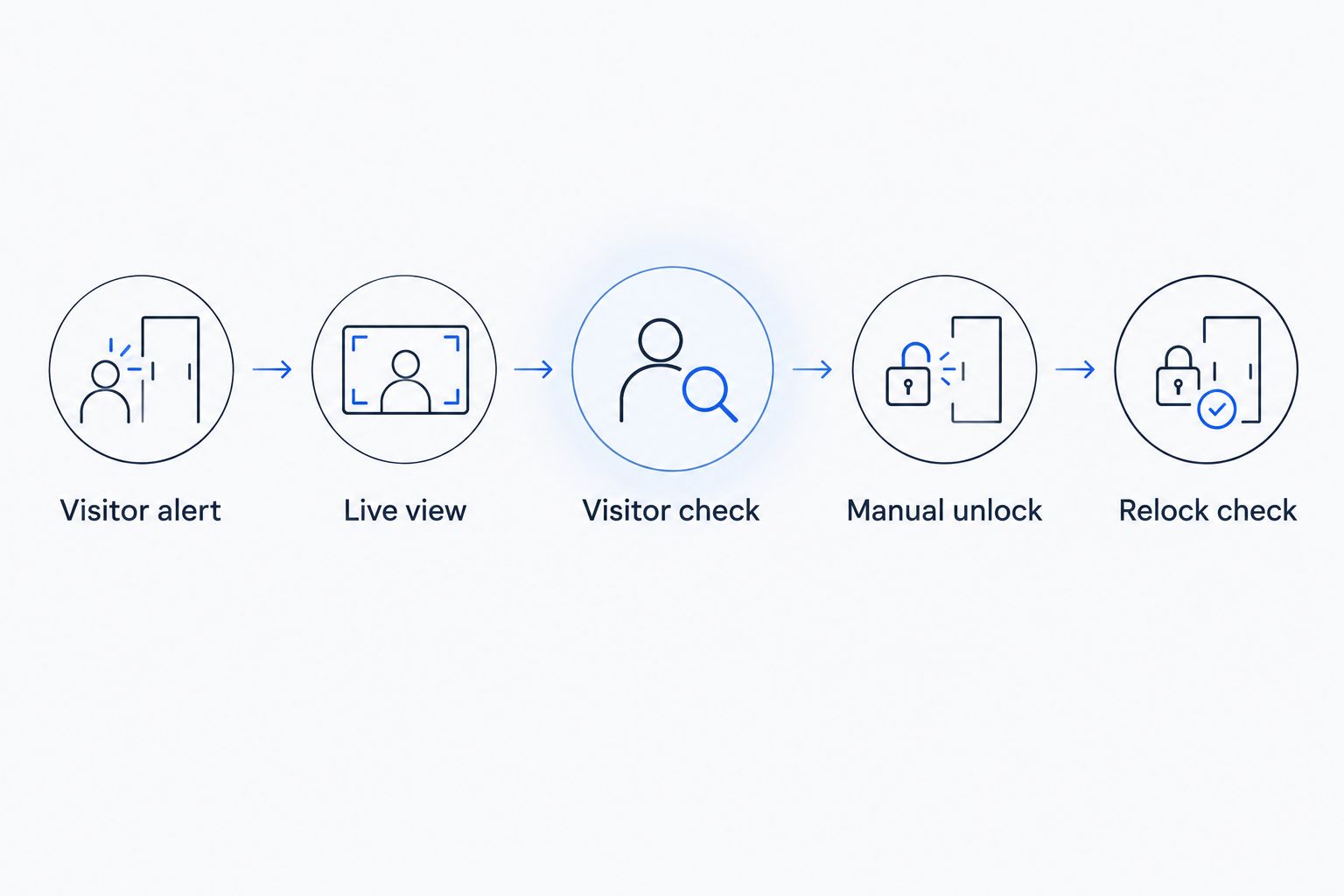
Build the visitor-entry sequence
- Visitor alert: Enable the doorbell notification you intend to use. Confirm your phone permits that app to deliver alerts.
- Live view: Open the current camera view, not just a saved event or notification thumbnail.
- Visitor check: Speak with the person and confirm why they need entry. If the image or audio is unclear, do not unlock.
- Manual unlock: Issue the unlock command through the supported interface or the lock's own app. Confirm you selected the correct door.
- Relock check: After the visitor enters and closes the door, request locking and check the reported result. Use a door-position sensor, if fitted and supported, to check closure separately.
Expected result: A visitor notification prompts a check, not an automatic unlock. Your approval remains a distinct step.
Run a complete remote test
- Run 2 complete entry tests with your phone on cellular data and a trusted person at the door.
- In each test, have that person ring the bell, confirm the notification arrives, and start live video and audio.
- Approve unlocking, have the person enter and close the door, then relock. Ask the person inside to verify the bolt physically engaged.
- Repeat using a household member's own account if that person will manage visitors. Confirm their permissions work without your administrator login.
Expected result: The entire sequence works outside your home network, including visitor identification and physical lock verification. A successful unlock alone is not a completed test.
Second workflow: scheduled guest entry
For recurring visitors, a temporary keypad code is an adjacent workflow when your lock supports it. The guest uses the code locally, while the doorbell lets you check the arrival remotely. This is guest-access management, not direct doorbell-to-lock integration.
Best for: A trusted visitor with an agreed access window. The advantage is independent keypad entry; the limitation is that anyone holding a valid code can attempt to use it during its permitted period.
- Create 1 unique code for the guest using the lock manufacturer's supported process. Do not reuse your household's everyday code.
- Apply a start time and expiration if supported. Check the device's time settings before relying on a schedule.
- Send the code privately to the intended guest, without pairing it with public address details.
- Verify that the code reaches the lock. Test the access window before the actual visit.
- Remove the code when access ends, and confirm the deletion reaches the device.
Expected result: The guest has limited access without receiving administrator credentials. If your lock does not support scheduled codes, keep remote approval as the workflow instead.
For a 2026 guest-access review, check both codes and shared accounts. Removing a code does not remove a person's separately granted app access.
Troubleshooting
The lock appears, but there is no unlock control
Check the documented integration's supported functions and your account permissions. Device discovery and status reporting do not prove unlocking support. Use the manufacturer's remote-control app if the shared interface does not support unlocking.
Everything works at home, but fails on cellular data
Check whether the lock is connecting locally through Bluetooth rather than through its required remote-access hardware. Confirm the bridge or hub is online, the internet connection works, and the account has remote-control permission. Test each device separately again.
The motor runs, but the bolt does not engage
Test the deadbolt with the door open and then closed. If it works only while open, inspect door and strike alignment; do not keep sending motor commands against resistance. Check batteries and repeat calibration only as the manufacturer instructs.
The doorbell alert arrives without usable live video
Open the doorbell app directly and test its live view. Check camera connectivity, phone permissions, and whether the displayed image is current. Do not unlock from an old thumbnail or an audio connection you cannot understand.
The app reports locked, but the door is open
Determine whether the app reports bolt position or actual door closure. A deadbolt can extend while the door remains open. Verify closure separately, and use a supported door-position sensor if you need that information remotely.
Customize your workflow
Keep the basic visitor-entry sequence intact before adding more household users or additional doors. Use distinct device names, separate user accounts, and a documented backup-entry plan. Retest after changing the router, replacing required connection hardware, or changing account ownership.
For Middlesex County homeowners, Apex Lock N Key provides the locksmith side of the job. Confirm the scope of any requested hardware work separately from the doorbell manufacturer's app support.
For your 2026 household handover, show each authorized person how to check live video, approve the correct lock, and verify relocking. Also explain what to do when the internet, phone, or lock battery is unavailable.
Discuss your door hardware
Get licensed locksmith help for your Middlesex County home.
FAQ
How do I connect video doorbell to smart lock for remote entry?
Use a manufacturer-supported integration or a shared platform that explicitly supports both devices and remote unlocking. If no combined interface exists, check the visitor in the doorbell app and then approve entry in the lock's own app.
Can any video doorbell connect to any smart lock?
No; compatibility depends on the exact models, platform, account permissions, and required connection hardware. Confirm video viewing and remote unlocking separately before choosing a setup.
Do I need a hub or bridge for remote unlocking?
You need one when your lock's manufacturer requires it for remote access. A lock that works through Bluetooth near the door does not, by that fact alone, support unlocking while you are away.
Should my door unlock automatically when someone rings the bell?
No; a doorbell press does not identify an authorized visitor. Keep unlocking as a separate action after checking live video and speaking with the person.
How do I know remote entry works when I am away?
Test the complete workflow with your phone on cellular data and a trusted person at the door. Confirm the alert, live video, unlock command, door closure, and physical relocking.
Is a temporary code better than remote unlocking?
A temporary code suits a trusted visitor with an agreed access window when the lock supports restricted codes. Remote unlocking suits visits where you want to check and approve the person at arrival.
Can Apex Lock N Key help with the physical lock?
Apex Lock N Key provides licensed locksmith services for Middlesex County homeowners. Discuss the requested door-hardware work separately from compatibility and account support for your chosen video doorbell.
One last thing
A locked bolt and a closed door are different facts. Before relying on remote entry, check what your app actually reports. Finish your setup with someone inside confirming the door closes and the bolt engages without force—not just with a successful-looking phone screen.