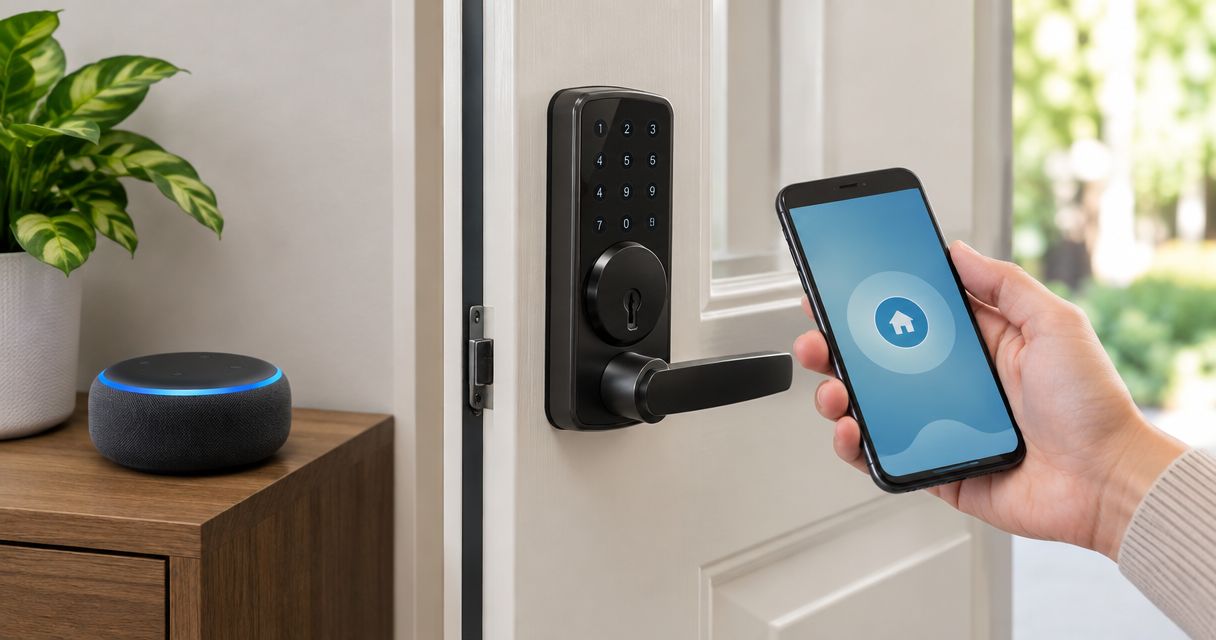
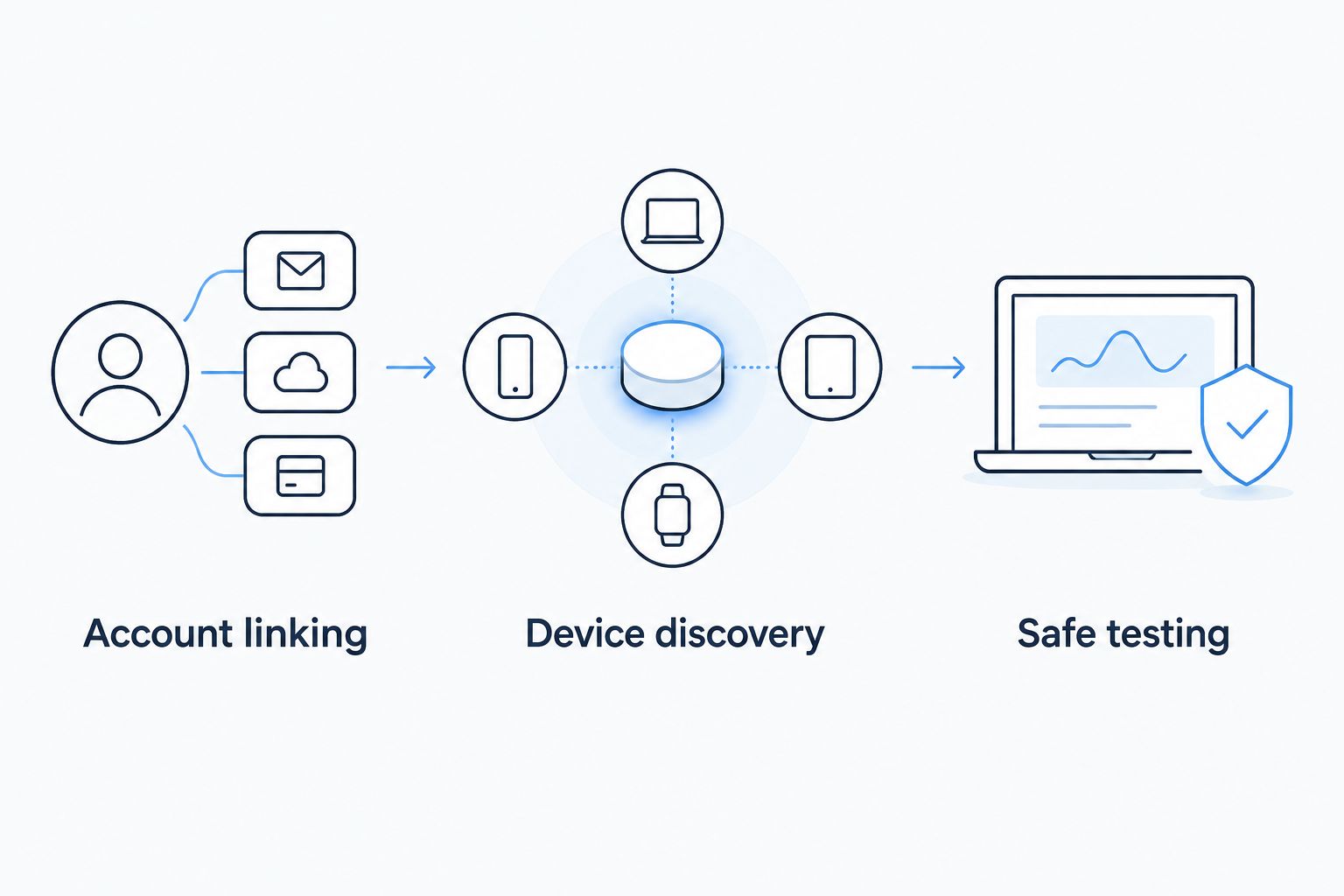
Instead of opening your lock app every time you want to check or lock the front door, connect an Alexa-compatible smart deadbolt through its manufacturer's Alexa skill or supported Matter setup. This guide walks you through compatibility, account linking, device discovery, and safe testing while keeping voice unlocking separate.
- To connect smart deadbolt to Alexa, confirm your exact model supports an Alexa skill or Matter pairing.
- Amazon Alexa can control supported locks; Bluetooth alone does not establish Alexa compatibility.
- Keep voice unlocking disabled unless you deliberately need it and understand the available safeguards.
- Apex Lock N Key is best for Massachusetts homeowners who need physical deadbolt installation, not account troubleshooting.
Why this matters
An Alexa connection does not fix a deadbolt that sticks. Your lock needs to work mechanically and through its own app before you add voice control. Otherwise, account troubleshooting distracts you from the actual door problem.
Start with the electronic deadbolt installation guide for homeowners if the bolt scrapes, the door needs lifting, or the motor struggles when the door closes. Software cannot correct a misaligned strike plate.
For your 2026 setup, treat locking, status checks, and unlocking as separate permissions. Connecting the device does not mean you need to enable every available function. Apex Lock N Key is best for Massachusetts homeowners who need physical smart deadbolt installation rather than app-account troubleshooting.
Before you start
- Confirm the exact model and connection route. Read the manufacturer's instructions for Alexa compatibility, required bridges or hubs, and account permissions. A keypad or Bluetooth connection alone does not prove that Alexa can reach the lock.
- Have administrator access and a backup entry method. You need the Alexa app, your Amazon account, and the manufacturer's app and account for a skill-based connection. Keep any supported physical key or another authorized entry method accessible during testing.
- Check the hidden compatibility requirement. A Matter-over-Thread deadbolt needs a compatible Matter controller and Thread border router. Not every Echo device supplies both functions; confirm the requirements for your exact lock and Echo before pairing.
Install manufacturer updates and finish any required handing or calibration process first. Test with the door open, then closed, while you remain inside. Never make voice control your only way back into the house.
If you rent, get permission before replacing hardware or changing access arrangements. Alexa account linking does not remove obligations under your lease.
Choose your connection route
Use the route documented for your exact deadbolt. Do not enable a random skill because its name resembles the name on your lock.
| Connection route | Best for | Advantage | Limitation |
|---|---|---|---|
| Manufacturer Alexa skill | Owners whose lock instructions specify Alexa account linking | Connects Alexa to the lock through the manufacturer's supported integration | Depends on the manufacturer's account and supported connection equipment |
| Matter pairing | Owners of a Matter-compatible deadbolt with compatible Alexa equipment | Uses Matter commissioning instead of a manufacturer skill for the Alexa connection | Requires compatible controllers; Thread models also need a Thread border router |
Neither route guarantees every lock feature appears in Alexa. Guest-code management, event history, calibration, and other manufacturer-specific functions belong in the manufacturer's app unless the integration explicitly supports them.
Use one supported route first. Adding the same physical deadbolt through multiple integrations can create duplicate device entries and confusing names. Confirm basic operation before considering another connection.
Manufacturer app preparation
Complete this stage before opening Alexa. The manufacturer's app is your baseline for deciding whether a later failure belongs to the lock or the voice integration.
- Identify the deadbolt. Find the model designation in the app, packaging, or installation instructions. Confirm that its Alexa instructions apply to that model, not merely to another lock from the same manufacturer.
- Finish the manufacturer's setup. Follow its installation, calibration, network, and bridge instructions. Use the specified connection settings rather than guessing a Wi-Fi band or hub requirement.
- Check your account permissions. Sign in with the account authorized to connect the lock to other services. A shared guest account is not a substitute for administrator access.
- Test the lock directly. Send a lock command from the manufacturer's app with the door open. Unlock it, close the door, and repeat while standing inside.
- Give the door a clear name. Use a name such as Front Door or Side Door, and avoid assigning the same name to a light, room, and lock.
Expected result: The manufacturer's app operates the correct deadbolt, and the bolt moves freely with the door both open and closed.
For a 2026 installation, save the model designation and connection requirements somewhere you can find them later. Keep passwords and pairing codes private; do not place them on a public household noticeboard.
Alexa skill and account linking
These steps cover the manufacturer-skill route. If your instructions specify Matter pairing instead, use the separate workflow below. Manufacturer authorization screens differ, so follow their wording rather than looking for an invented universal login button.
- Open the Alexa app and select More.
- Select Skills & Games, then search for the official skill named in your lock manufacturer's instructions.
- Open that skill and select Enable to Use.
- Sign in to the manufacturer's account when its authorization screen opens. Use the account that contains the deadbolt you already tested.
- Review the requested access before authorizing it. Complete any account verification required by the manufacturer.
- Follow the return prompts to finish linking the skill to Alexa.
Do not enter your lock-account password into an unrelated skill or a page reached through an unsolicited message. Start from the Alexa app and the manufacturer's own instructions.
Expected result: Alexa confirms that the skill is linked to the manufacturer's account. Account linking is not yet proof that Alexa has discovered the deadbolt or can operate it.
If authorization fails, stop here. Repeating device discovery will not repair an account that never linked successfully. First verify that you can sign in to the manufacturer's app using the same account.
Device discovery and naming
After account linking, Alexa needs to discover the deadbolt. The skill's setup flow can prompt discovery automatically; otherwise, start it from the Alexa app.
- Follow the skill's discovery prompt. If none appears, open Devices, select +, then select Add Device.
- Select Lock and follow the instructions for the manufacturer or connection route shown. Do not switch routes simply because discovery is taking longer than expected.
- Open the discovered lock and check that it matches the intended door. Compare it with the device listed in the manufacturer's app.
- Review the device name. If you change it, use a short, distinct name that everyone in the household can say consistently.
- Remove naming conflicts before testing. Front Door should not also identify a light or an unrelated smart-home group.
Expected result: One clearly named entry represents the intended deadbolt in Alexa. Its reported status should match a fresh check of the physical lock.
Account linking, discovery, and testing are separate checkpoints. Complete them in that order so you know where a failure starts.
Safe testing and permissions
Start with locking and status checks, not voice unlocking. A convenient command should not quietly expand who can open your door.
- Remain inside with an authorized backup entry method accessible. Tell household members that you are testing the lock.
- Ask Alexa to lock the named door, using a command such as: Alexa, lock the Front Door.
- Confirm the bolt position physically. Listen for a strained motor and check that the bolt fully enters the strike opening without pushing or lifting the door.
- Ask Alexa whether the named door is locked. Compare the response with the actual bolt position and the manufacturer's app.
- Open the lock's settings in Alexa and review the available permissions. Leave voice unlocking off unless you have a specific reason to enable it.
- If your integration offers voice unlocking, follow its security setup, including any required voice code. Do not reuse a publicly shared entry code or test within hearing of visitors.
Expected result: You complete 3 checks: a successful lock command, a matching status response, and a smooth physical bolt movement.
Check both of the lock's 2 states—locked and unlocked—rather than accepting one successful response. A stale status reading is not proof that the latest command succeeded.
During your 2026 setup, keep the security decision explicit: Alexa control is optional, and voice unlocking is a separate choice. If you cannot confirm how a permission works, leave it disabled.
Second workflow: connect through Matter
Use this variant only when your exact deadbolt supports Matter and its instructions support connection to Alexa. A non-Matter lock does not become Matter-compatible through an app setting.
- Check the required equipment. Confirm compatible Alexa Matter-controller support. For a Matter-over-Thread lock, also confirm an appropriate Thread border router is available.
- Find the pairing instructions. Follow the manufacturer's procedure for putting the lock into Matter pairing mode. Keep the setup code private.
- Start Alexa device setup. Open Devices, select +, then Add Device. Follow the Matter setup prompts available for your device and app.
- Use the correct pairing code. For a new device, follow its initial setup-code instructions. If the lock already belongs to another Matter platform, use that platform's sharing or commissioning procedure to generate the code for adding Alexa.
- Finish naming and testing. Give the discovered lock a distinct name and repeat the locking, status, and physical checks above.
Expected result: Alexa controls the Matter-connected deadbolt without requiring a manufacturer Alexa skill for that connection.
For a 2026 household using more than one smart-home platform, Matter sharing is different from factory-resetting the lock. Follow the existing platform's sharing instructions first; a reset can remove settings you intended to keep.
Troubleshooting
Alexa cannot discover the deadbolt
First check whether the manufacturer's app can operate the lock. If it cannot, repair that connection before retrying Alexa discovery.
If the app works, confirm that the skill links to the correct administrator account and that the manufacturer exposes your model to Alexa. For Matter, check pairing mode, controller compatibility, and any Thread requirement.
Alexa finds two copies of the same lock
Check whether you connected the deadbolt through both a skill and Matter, or retained an old integration. Identify which entry actually controls the door before removing the unused entry.
Review any routines that reference the removed device. Renaming duplicates does not solve the underlying duplicate connection.
Alexa says the lock is not responding
Test the manufacturer's app, check the lock's battery warning, and inspect any required bridge or network connection. For a Matter connection, check the controller and Thread equipment specified by the manufacturer.
Retry after correcting the actual fault. Do not factory-reset the deadbolt as your first troubleshooting step.
The motor runs, but the door does not lock
Test with the door open. If the bolt moves freely open but binds closed, inspect door alignment and the strike opening instead of relinking Alexa.
Stop repeated powered attempts when the mechanism strains. Apex Lock N Key provides licensed mobile residential locksmith service in Massachusetts; physical smart deadbolt work requires a door-and-hardware assessment, not another account login.
Locking works, but voice unlocking does not
Check whether your model and integration support voice unlocking and whether that permission is enabled. Complete the required security setup only if you intend to use the feature.
An integration that supports locking does not automatically support every unlocking method. Keeping voice unlocking disabled is a valid setup, not a failed installation.
Customize your workflow
Keep your first configuration simple: 1 named door, a working lock command, and a verified status check. Add household features only after those basics work reliably.
If Alexa exposes a lock action in Routines for your integration, you can include it in a bedtime routine. Build and test the routine while you are home, then confirm the physical bolt position. An announcement that says the house is secure is not a substitute for a verified lock state.
Use the manufacturer's app for supported guest-code management and access records. Removing someone's app access does not necessarily revoke a physical key or an existing keypad code; review each access method separately.
For Massachusetts homes in Middlesex, Essex, Suffolk, and Norfolk counties, keep installation decisions separate from account configuration. Apex Lock N Key's locksmith service addresses physical security work; manufacturer support handles model-specific integration problems.
FAQ
Can I connect any smart deadbolt to Alexa?
No. Your exact smart deadbolt must support a manufacturer Alexa skill or a compatible Matter connection. A keypad, Bluetooth connection, or smart-lock label alone does not establish Alexa compatibility.
Do I need an Echo to connect a smart deadbolt to Alexa?
The required equipment depends on the connection route. A manufacturer skill uses its specified connection equipment, while Matter requires a compatible controller and Thread models also require a Thread border router.
Why does my lock work in its app but not in Alexa?
The Alexa integration needs separate account authorization and device discovery. Confirm the linked account, supported model, and correct connection route before resetting the lock.
Can Alexa unlock my front door by voice?
Voice unlocking depends on the deadbolt and its Alexa integration. Enable it only deliberately, complete the required safeguards, and keep it disabled if you do not need it.
Is Matter better than an Alexa skill for a deadbolt?
Matter is an alternative connection route, not a guarantee of more lock features. Use the route your exact model supports and compare the equipment requirements before changing a working setup.
Can Alexa tell whether my front door is open?
A deadbolt's locked status does not prove the door is closed. Door-open reporting requires suitable sensing and integration support; verify those capabilities for your model.
Should I factory-reset my deadbolt if Alexa cannot find it?
No, a factory reset should not be your first step. Check account linking, compatibility, discovery, and required connection equipment before following the manufacturer's reset instructions.
Who should I call if my smart deadbolt sticks?
Contact a locksmith for a bolt that binds or a door that needs lifting to lock. Apex Lock N Key provides licensed mobile locksmith service for Massachusetts homeowners; account-linking faults belong with the manufacturer or platform support.
One last thing
Locked and closed are different facts. A deadbolt can extend while the door stands open, so a locked-status response alone does not confirm that your entrance is secured.
Make that distinction part of your 2026 household check: close the door, confirm the bolt seats properly, and verify any door sensor separately. Voice control adds convenience. The door, frame, and bolt still do the security work.