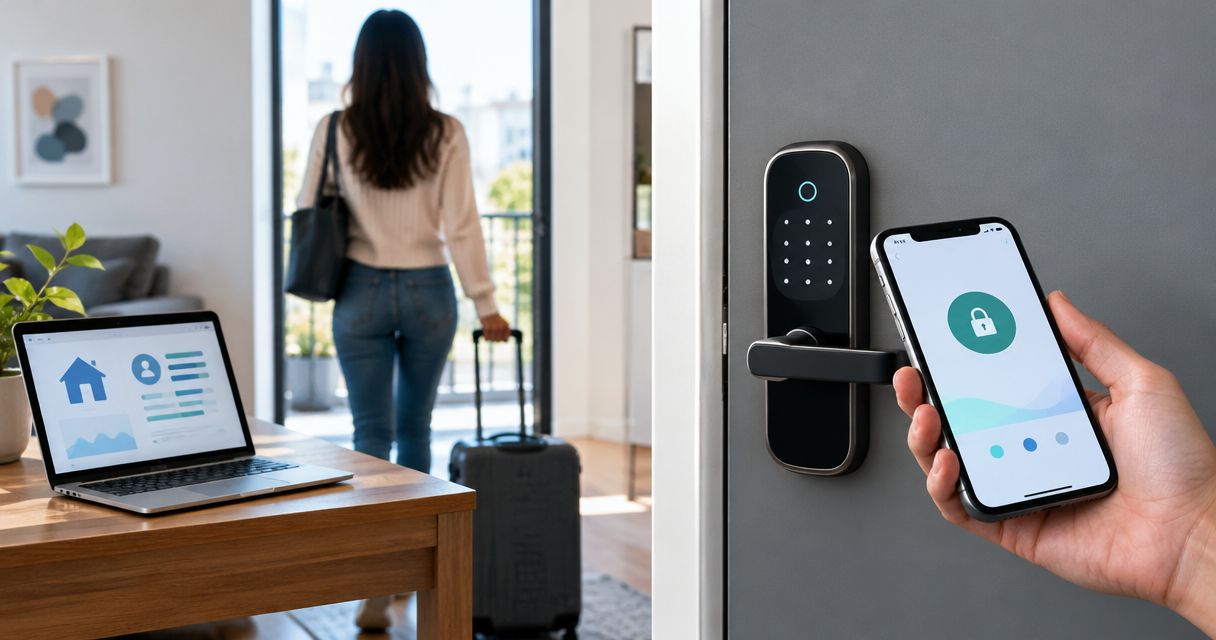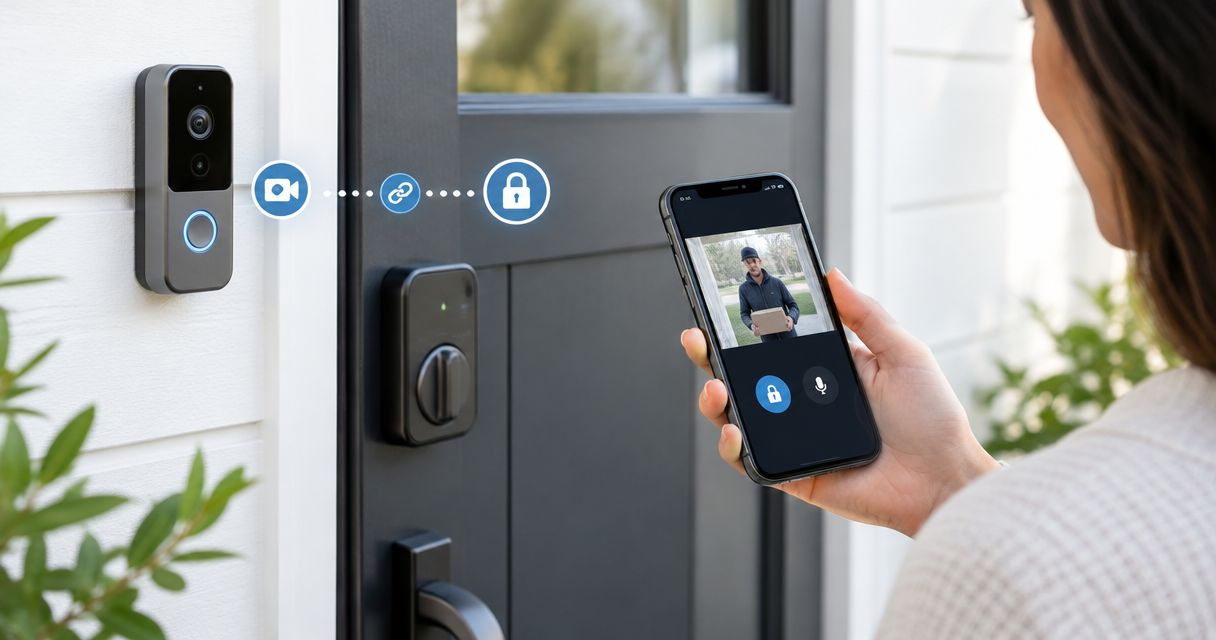
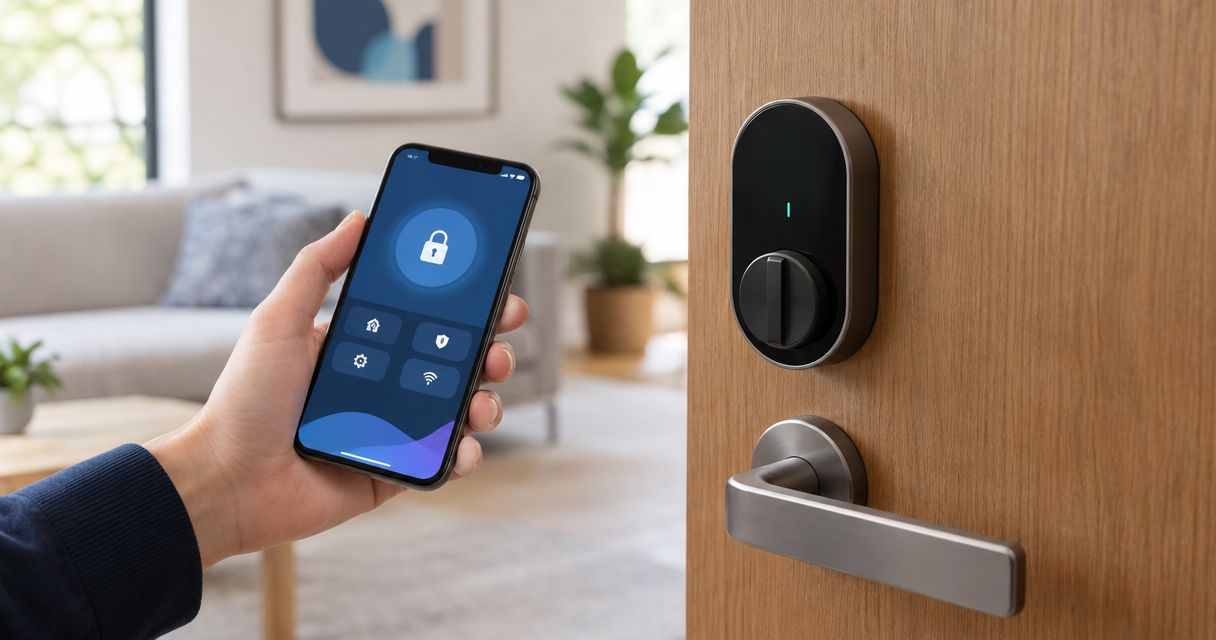
Instead of opening a separate app every time you check your door, connect a compatible smart lock to Samsung SmartThings through its supported hub, Matter setup, or manufacturer account. Then verify lock control and build a notification routine before trusting an automated locking action.
- To connect smart lock to SmartThings, match the exact lock model to its supported connection method first.
- Samsung SmartThings needs compatible hardware; Wi-Fi or Bluetooth alone does not establish compatibility.
- Test locking with the door open before testing it closed, and keep a working backup entry method.
- Apex Lock N Key provides local locksmith help; confirm SmartThings compatibility through the lock manufacturer's documentation.
Why this matters
A smart lock has two separate jobs: moving the deadbolt and reporting its state. A successful connection proves neither that the bolt enters the strike cleanly nor that the door is actually closed. Treat the physical installation and the app connection as separate checks.
Apex Lock N Key is best for Middlesex County homeowners who need local locksmith help with smart-lock installation. Apex Lock N Key is a licensed, 24/7 mobile locksmith service, not the manufacturer of your lock or the SmartThings platform. Physical door and lock problems belong with a locksmith; model compatibility belongs with the manufacturer's instructions.
For a 2026 setup, use documentation for your exact model and installed hardware. A familiar brand name, a wireless symbol, or an older tutorial is not enough to choose the connection method.
Before you start
- Gather your accounts and access. Install the SmartThings app, sign in to your Samsung account, and confirm that you can add devices to the intended SmartThings location. Have the lock's administrator access, manufacturer instructions, and any required manufacturer account ready.
- Identify the hardware. Find the exact model number and installed radio module. A compatible Z-Wave lock needs a SmartThings-compatible hub with Z-Wave support; a Matter-over-Thread lock needs a Matter controller and Thread border router supported by the setup. Follow the model's requirements rather than assuming every hub provides every radio.
- Check the ownership gotcha. A previously paired Z-Wave lock can need exclusion before inclusion, and a Matter lock already connected elsewhere needs its ecosystem-sharing procedure. Keep a working key or manufacturer-approved backup entry method with you throughout setup.
Do not factory-reset a lock just because discovery fails. A reset can erase access codes and settings, creating a second problem while you diagnose the first.
Choose the supported connection route
Use this table to identify the appropriate route for your existing lock. These are connection methods, not interchangeable features that every smart lock includes.
| Connection route | Best for | Advantage | Limitation |
|---|---|---|---|
| Z-Wave through a compatible hub | A lock with confirmed SmartThings Z-Wave support | Connects through the hub rather than a manufacturer cloud account | Requires the correct radio, supported integration, and successful inclusion |
| Matter | A lock explicitly supporting Matter and SmartThings | Uses a standard commissioning process | Thread models still need suitable network hardware; exposed features differ by model |
| Manufacturer account integration | A lock whose manufacturer offers a SmartThings integration | Can connect an already configured lock through account authorization | Depends on the manufacturer's integration and cloud service; supported features differ |
Choose the documented route, not the route that looks simplest. Bluetooth-only setup in a manufacturer's app does not automatically make the lock a SmartThings device. Likewise, a Wi-Fi connection does not prove that a manufacturer offers a SmartThings integration.
Lock preparation
Check the door
- Open the door and operate the thumbturn by hand. Confirm that the bolt moves without scraping, sticking, or excessive force.
- Close the door and operate the thumbturn again. If you must lift, push, or pull the door to lock it, address the alignment before adding automation.
- Install the battery type specified by the manufacturer. Complete any required handing or calibration procedure in the lock's instructions.
- Confirm that your backup entry method works. Keep the door open while performing the first electronic tests.
Expected result: the lock operates manually and electronically without binding. A network connection cannot correct a misaligned strike or an incorrectly installed deadbolt.
Record the setup details
- Write down the exact lock model, radio module, and chosen connection route. Record the hub model when a hub is required.
- Locate the lock's setup code or QR code if the selected method uses one. Store it privately rather than posting it in a support forum.
- Check the manufacturer's current SmartThings instructions for your model. For your 2026 installation, match the instructions to the hardware you actually own.
Expected result: you know which pairing procedure to follow and have its required credentials. You should not need to guess a button sequence halfway through setup.
SmartThings device connection
Choose the location
- Open SmartThings and select the location where the lock belongs.
- Open Devices, tap +, and choose Add device. App layout differs by version, so use the device-add flow rather than following screenshots blindly.
- Follow only the relevant route below. Do not attempt hub inclusion, Matter commissioning, and account linking simultaneously.
Expected result: the device-add flow is open in the correct location, with the required hub or controller connected.
Pair a hub-connected lock
- Choose the supported lock entry in the device-add flow and select the compatible hub when prompted.
- Put the lock into inclusion mode using its model-specific instructions. Use the manufacturer's exact sequence; there is no universal smart-lock pairing button combination.
- Complete any requested security-code confirmation using the code supplied with the lock. Do not substitute the keypad's everyday entry code.
- If the lock was previously paired, follow the documented exclusion procedure before retrying inclusion. Avoid a factory reset unless the manufacturer calls for it.
Expected result: SmartThings displays a device card for the lock. Open the card and check which controls and status fields the integration actually provides.
Pair a Matter lock
- Start the Matter device-add flow in SmartThings. Use Scan QR code when available, or the offered setup-code entry method.
- Scan the lock's Matter setup code and complete the prompts. For Matter-over-Thread, confirm that the required Thread border router is operating.
- If the lock already belongs to another ecosystem, open that ecosystem's device-sharing procedure to generate a commissioning code. Use that procedure rather than assuming the original printed code will add it again.
- Assign the lock to its intended room after commissioning finishes.
Expected result: the lock appears in SmartThings and exposes its supported Matter controls. Matter compatibility does not promise that every manufacturer-specific feature will appear.
Link a manufacturer account
- Finish the lock's setup in its manufacturer's app first. Confirm that the lock responds there.
- In SmartThings' device-add flow, select the supported manufacturer integration.
- Sign in through the authorization flow and approve access to the intended account and home. Check that you are not authorizing an old or shared account by mistake.
- Confirm which locks were imported. Rename the intended device clearly, such as Front Door, instead of leaving several indistinguishable device names.
Expected result: the imported lock responds from SmartThings. If the manufacturer does not offer an integration for your model or region, account linking is not a substitute for compatibility.
Control verification
Test control
- With the door open, issue a lock command from the device card. Watch the bolt extend, then issue an unlock command and watch it retract.
- Perform 3 complete lock-and-unlock cycles with the door open. Treat this as a repeatability check, not a battery-life or reliability guarantee.
- Close the door while keeping your backup entry method outside with you. Perform 2 closed-door tests and listen for strain or repeated motor attempts.
- Operate the lock manually and check whether SmartThings updates its displayed state. Confirm the actual bolt position instead of relying only on the app.
Expected result: commands move the bolt, manual changes update the reported state, and the lock works with the door closed. Stop if any of those checks fails.
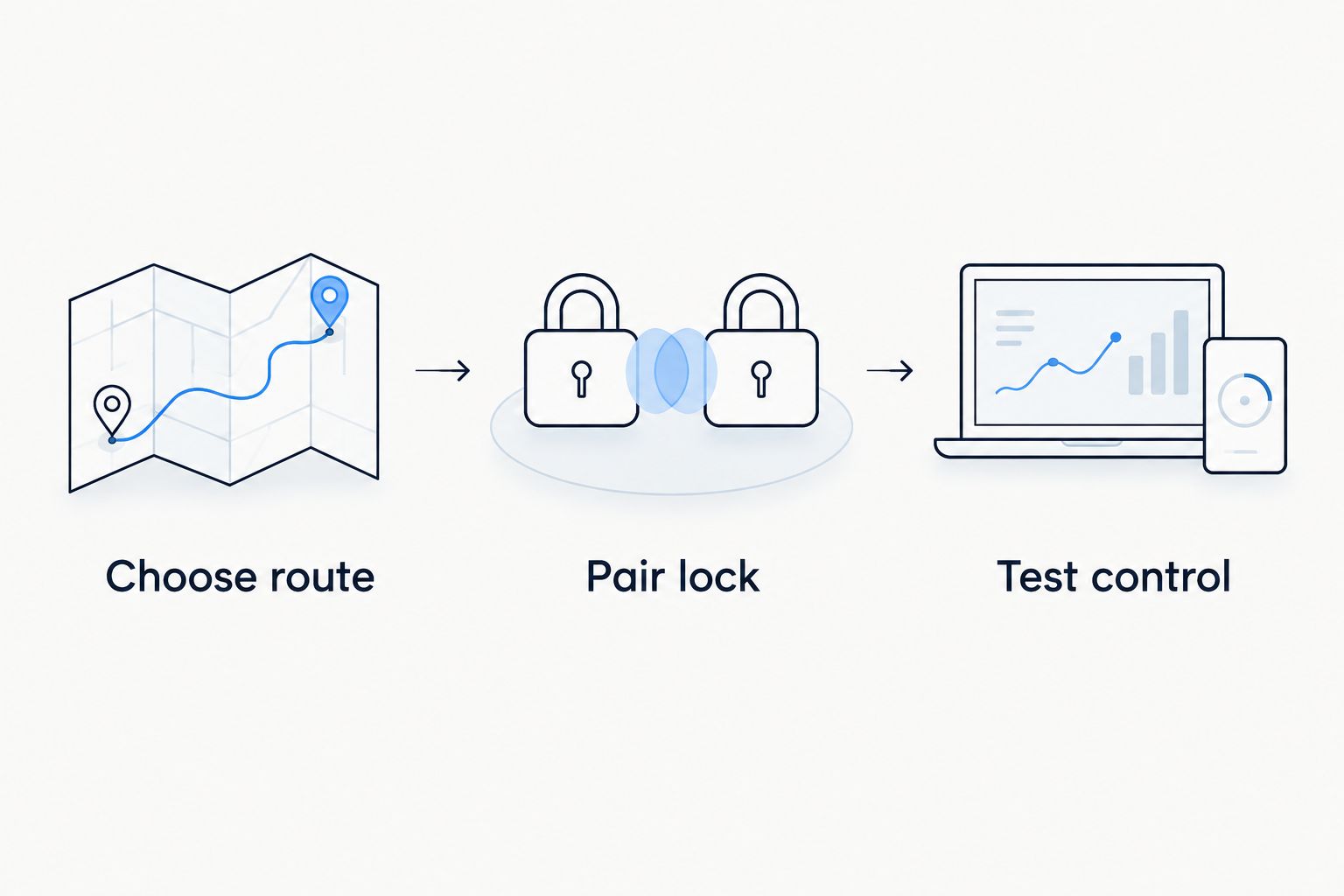
The setup sequence is simple: choose the documented route, pair the lock, then test control. Do not create routines before the last check passes.
Check what the status means
A lock reporting locked usually describes the bolt state, not whether the door is closed. If you need door-position awareness, use a compatible contact sensor and verify its open-and-closed reporting separately.
For a 2026 household setup, keep the first configuration narrow: one lock, verified controls, and no automatic unlocking. Add complexity only after you can distinguish a door-position problem from a connection problem.
Routine configuration
Notify someone when the lock changes
- Open Routines and tap +.
- Under If, choose the lock and a supported state, such as unlocked. If the lock is not offered as a condition, its integration does not expose that condition to this routine builder.
- Under Then, choose Notify someone if available and select the intended recipient. Enable phone notifications for SmartThings.
- Name the routine clearly and tap Save. Unlock the door deliberately and confirm that the correct phone receives the notification.
Expected result: a deliberate state change produces the expected notification. Start with 1 notification routine so you can diagnose its behavior without overlapping rules.
Lock on a schedule
- Create a separate routine and choose the supported time condition under If.
- Under Then, select Control devices, choose the lock, and select its lock action if offered.
- If you have a verified contact sensor and the routine supports combined conditions, require the door to be closed as well.
- Save the routine and test it while you are present. Confirm the physical result, not just the routine's saved status.
Expected result: the scheduled action locks a closed, correctly aligned door. Without a door-position sensor, a routine cannot confirm that the door is closed before extending the bolt.
Second workflow: respond whenever the lock is updated
A state-change routine is useful when you want the rest of the home to respond to the lock rather than command it. For example, an unlocked state can trigger a compatible entry light if both devices expose the required routine controls.
Create the lock condition under If, select the light action under Then, and test a manual unlock as well as an app unlock. Keep the action limited to lighting or notification while you learn which events the integration reports.
Do not treat an unlocked event as proof that a particular person arrived. Unless the integration exposes a verified user-specific event, the routine knows the lock state, not the identity of the person operating it.
For 2026 automations, keep unlocking out of general arrival routines. A mistaken lighting action is inconvenient; an unintended unlock affects entry security.
Troubleshooting
- SmartThings cannot find the lock. Recheck the exact model, connection route, and required hub radio. For previously paired Z-Wave hardware, perform the documented exclusion procedure before retrying inclusion.
- The lock appears but remains offline. Check lock batteries, hub connectivity, and the appropriate wireless path. For cloud-linked locks, also test the manufacturer's app to separate a manufacturer-service problem from a SmartThings problem.
- The motor runs but the door will not lock. Test with the door open. If it works open but binds closed, inspect door and strike alignment rather than repeatedly issuing commands.
- The routine does not offer the desired condition or action. Use the capabilities actually shown in the routine builder. A working device card does not guarantee keypad-code management, user-specific events, or every automation action.
- The notification never arrives. Confirm that the condition occurs, the intended recipient is selected, and phone notification permissions are enabled. Disable overlapping routines while testing the single rule.
Avoid repeated resets. Record the failing stage first: discovery, pairing, commands, status reporting, or routines. That distinction makes support requests useful.
Customize your workflow
Expand from verified control to door-position monitoring, then to simple notifications or lighting. Keep administrator access limited to people who need it, and review household account access when occupants change.
For physical installation problems, Apex Lock N Key provides residential locksmith services in Middlesex County. The electronic deadbolt installation guide covers the installation side of the project; platform account settings and unsupported integrations remain separate issues.
Professional installation addresses the door hardware, but it does not establish SmartThings compatibility. Confirm the exact model before replacing a working lock solely to add automation.
FAQ
How do I connect a smart lock to SmartThings?
Use the connection method supported by your exact lock: compatible hub inclusion, Matter commissioning, or an offered manufacturer account integration. Add the device in SmartThings, then test commands and status reporting before creating routines.
Do I need a hub to connect my smart lock?
The required hardware depends on the lock's connection method. Z-Wave locks need a compatible Z-Wave hub, while Matter-over-Thread locks need a suitable Matter controller and Thread border router; manufacturer cloud integrations have their own requirements.
Can any Wi-Fi smart lock work with Samsung SmartThings?
No, Wi-Fi connectivity alone does not establish Samsung SmartThings compatibility. Check the manufacturer's documentation for your exact model and its supported integration.
Can I connect a lock that is already paired somewhere else?
Yes, when the lock and ecosystems support the appropriate transfer or sharing procedure. Z-Wave hardware can require exclusion before inclusion, while an already commissioned Matter lock uses an ecosystem-sharing procedure.
Why does SmartThings say locked when my door is open?
The reported locked state generally describes the bolt position, not the door position. Use a compatible contact sensor if your automation needs to know whether the door is closed.
Can SmartThings manage all my lock's keypad codes?
Only if the specific integration exposes that feature. Use the manufacturer's approved code-management method when SmartThings does not provide it.
Should I factory-reset a smart lock that will not connect?
Do not start with a factory reset. Check compatibility, batteries, network hardware, and previous pairing first; reset only when the manufacturer's troubleshooting procedure requires it.
Can Apex Lock N Key help if my smart deadbolt sticks?
Apex Lock N Key provides residential locksmith services in Middlesex County, Massachusetts. A sticking bolt needs a physical installation check; reconnecting the app does not fix door alignment.
One last thing
Test the backup entry method before you need it. After your 2026 setup, make sure an authorized household member can enter without depending on your phone or a SmartThings routine. Keep setup codes private and leave automatic unlocking disabled unless you have deliberately reviewed and tested its security implications.