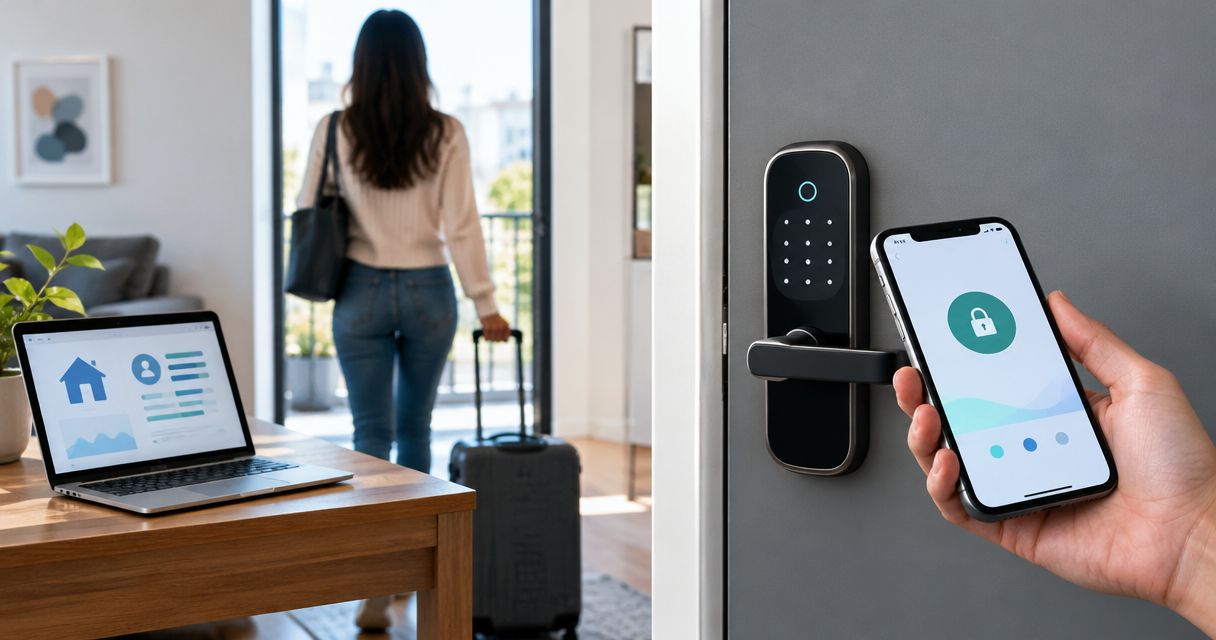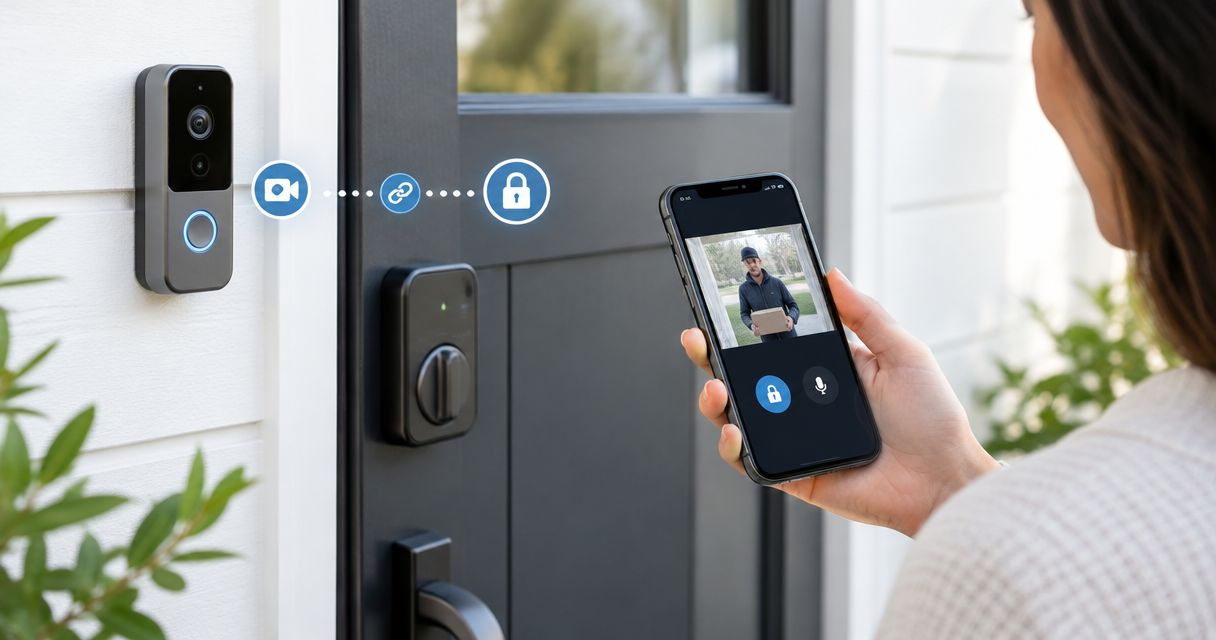
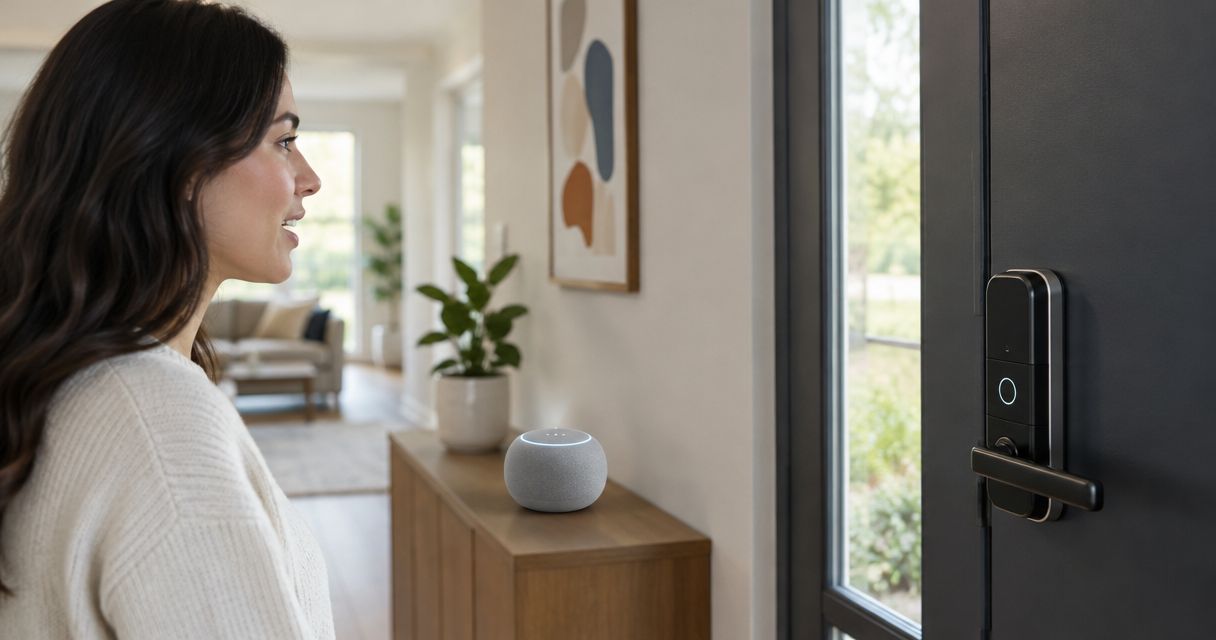
Instead of opening your lock’s app every time you need to check the door, connect your smart lock to Google Home so you can use supported voice commands. Voice unlocking requires explicit support from your lock’s Google integration; connecting the lock alone does not enable it.
- Connect smart lock to Google Home through its supported account integration or Matter setup, not Bluetooth pairing alone.
- Google Home voice unlock depends on the exact lock integration; a voice PIN is required where supported.
- Test locking, status reporting, and unlocking separately before relying on voice control.
- Apex Lock N Key is best for Massachusetts homeowners who need locksmith help with the physical lock, not account linking.
Why this matters
A smart lock connection has separate jobs: reach the lock, report its status, and accept commands. Success at one does not prove the others work. A lock can appear in Google Home while voice unlocking remains unavailable.
For your 2026 setup, check the manufacturer’s current instructions for your exact model and connection accessory. Look specifically for Google Home support and voice-unlock support—not just a general smart-home logo.
Apex Lock N Key provides residential locksmith services in Massachusetts. Apex Lock N Key is best for Massachusetts homeowners who need locksmith help with the physical lock, not account linking. Software setup cannot correct a deadbolt that catches against the strike plate.
Before you start
- Accounts and access: Have Google Home installed, access to the correct Google household, and administrator access to the lock’s manufacturer account. Complete the manufacturer’s initial installation and calibration first.
- Connection equipment: Confirm whether your model uses a manufacturer account integration, a required bridge, or Matter. For Matter over Thread, check Google’s current compatible hub and Thread border-router requirements before pairing.
- The gotcha: Confirm voice unlocking separately from voice locking. Keep a working alternative entry method available, and perform the initial tests from inside with the door open.
Do not start by resetting a working lock. A reset can remove access codes or other settings, depending on the model. First identify the connection method and read the lock’s instructions.
If you rent, obtain any required permission before changing door hardware. Linking an existing approved lock is different from replacing the deadbolt or modifying the door.
Choose the supported connection method
These are connection options, not guarantees of voice unlocking. Use the method your exact lock supports.
| Connection option | Best for | Advantage | Limitation |
|---|---|---|---|
| Manufacturer account integration | An existing lock with documented Google Home account linking | Connects Google Home to the lock’s existing service | Depends on the manufacturer’s service and supported commands |
| Matter pairing | A lock explicitly supporting Matter and the required Google Home equipment | Adds the lock through the Matter setup process | Requires compatible equipment; Matter support alone does not guarantee voice unlocking |
Do not choose a connection method solely to obtain voice unlock. Choose the supported method first, then confirm which commands it exposes. A lock’s Bluetooth connection to your phone is not, by itself, a Google Home integration.
Manufacturer app setup
Start with the lock’s own app. This separates a hardware or connectivity problem from a Google Home problem.
- Open the manufacturer’s app and select the installed lock. Confirm that you are using the owner or administrator account rather than restricted guest access.
- Follow the manufacturer’s battery, calibration, and firmware instructions. Use the battery type specified for your model.
- With the door open, command the lock to extend and retract the deadbolt. Keep fingers clear of the moving bolt.
- Close the door while remaining inside. Check that the deadbolt operates without pushing, pulling, or lifting the door.
- Confirm that the manufacturer’s app reports the correct locked and unlocked states. If your integration requires remote connectivity, verify that connection using the manufacturer’s documented test.
Expected result: The lock operates smoothly and its own app reports the correct state before Google Home is involved.
For this 2026 setup, use the manufacturer’s current app instructions. There is no universal manufacturer-side button name for enabling Google integration or a voice PIN.
If the lock works with the door open but struggles when closed, stop the account setup. Check the electronic deadbolt installation guide for the physical installation considerations. Repeated commands will not repair alignment.
Google Home account linking
Use this section for a manufacturer account integration. If your lock’s instructions specify Matter pairing instead, use the Matter section below.
- Open Google Home and confirm that you are signed into the Google account associated with the intended household. Select the correct home before adding anything.
- Open the app’s add-device flow and choose Works with Google Home. The location of the add-device control varies by app version; do not choose the Matter setup option for an account-linking integration.
- Search for the service name specified in your lock manufacturer’s Google Home instructions. It can differ from the model name printed on the lock.
- Select that service and sign into the manufacturer account containing the lock. Review the requested permissions before approving the connection.
- Complete the authorization flow and return to Google Home. Check that the intended lock appears.
- Assign the lock to the appropriate home and room if prompted. Confirm that you have not added a different property’s lock.
Expected result: Google Home displays the intended lock through the manufacturer’s linked service.
Account linking is an authorization step, not a new lock installation. Do not create a second manufacturer account just because the device fails to appear. An empty account gives Google Home no lock to import.
Avoid repeatedly unlinking and relinking the service. Establish whether the lock works in its own app first; then check account identity and permissions.
Lock name and status checks
A clear device name prevents ambiguous commands. Use a location-based name that people in your household recognize.
- Open the lock’s device settings in Google Home. Use Name where that field is available to give the lock a distinct name, such as Front Door Lock.
- Avoid giving another smart-home device the same name. Distinguish the front door from a garage entry or back door.
- Ask your Google voice device whether Front Door Lock is locked. Compare the answer with the manufacturer’s app and the physical bolt.
- With the door open, ask Google to lock Front Door Lock. Confirm that the bolt extends and that the reported state changes.
- Retract the bolt using the manufacturer’s app or the lock’s normal local control before closing the door.
Expected result: Google identifies the intended lock, accepts supported locking commands, and reports a state that matches the hardware.
Use 2 separate checks here: a status request and a locking command. These are different capabilities. Passing both still does not confirm voice-unlock support.
Apex Lock N Key’s residential locksmith services address the physical lock side of this process. Google account permissions and manufacturer integration settings remain separate from door operation.
Voice-unlock permission and testing
Treat voice unlocking as an additional permission, not the expected result of account linking. For your 2026 configuration, verify the current manufacturer documentation before enabling it.
- Find the manufacturer’s instructions specifically covering Google voice unlocking. If the integration does not support it, stop here and retain supported locking and status commands.
- Follow the documented process for enabling voice unlock and setting its voice PIN, where supported. Do not assume that the keypad entry code is automatically the voice PIN.
- Choose the voice PIN according to the manufacturer’s requirements. Avoid reusing a sensitive PIN from another account or device.
- While standing inside with the door open, ask Google to unlock the named lock. Complete the supported PIN challenge privately.
- Confirm that the physical bolt retracts. Check the reported state rather than relying only on the spoken response.
- Check the manufacturer’s documentation for how unauthorized or incorrect-PIN requests are handled. Follow its testing instructions without repeatedly submitting incorrect credentials.
Expected result: A supported unlock command succeeds only through the integration’s required authorization process. If Google refuses unlocking, retain another entry method rather than attempting to bypass that restriction.
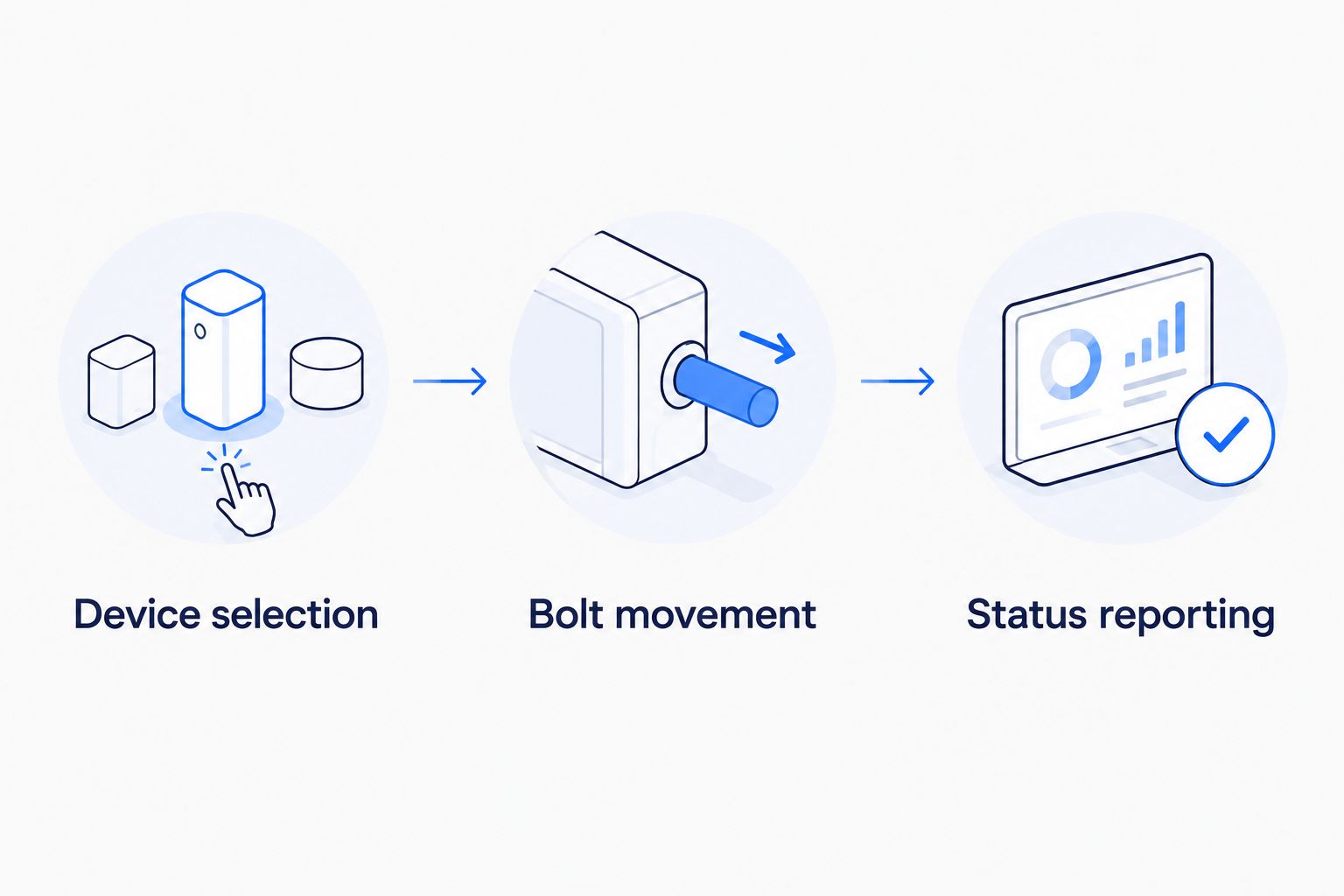
Perform 3 distinct checks before relying on the connection: correct-device selection, physical bolt movement, and matching status reporting. Record the outcome, not the PIN, in a household setup note.
A spoken PIN can be overheard. Place voice devices thoughtfully and decide whether hands-free unlocking is appropriate for your household. Voice control is a convenience feature, not your only way inside.
Alternative workflow: pair a Matter-enabled lock
Use Matter pairing when the manufacturer explicitly documents it for your lock. Do not use this workflow simply because account linking failed.
- Confirm that the lock supports Matter and identify its network requirements. A Thread-based lock requires compatible Thread infrastructure; other Matter devices use different connection arrangements.
- Prepare the Google Home equipment required for that device and make sure it is connected. Follow Google’s current 2026 compatibility guidance for your exact equipment.
- Put the lock into its documented Matter pairing mode. Keep its setup code private.
- In Google Home’s add-device flow, choose Matter-enabled device and follow the prompts to scan or enter the setup code.
- Assign the lock to the correct home and room, then repeat the status and locking checks described above.
Expected result: The Matter lock appears in Google Home and responds to the commands supported by that connection.
If the lock is already paired to another Matter platform, follow its documented multi-admin sharing process. Do not assume the original setup code remains sufficient for adding another platform, and do not factory-reset the lock without checking the consequences.
Matter pairing does not override Google’s security controls. Confirm voice-unlock behavior separately. Avoid adding the same physical lock through multiple methods unless the manufacturer documents how those connections should coexist.
Troubleshooting
The lock does not appear after account linking
Check whether the manufacturer account you authorized actually contains the lock. Confirm administrator access and any required bridge connection. If the lock is absent from its own app, resolve that problem before repeating Google Home setup.
Google reports that the lock is offline
Check the lock in the manufacturer’s app, then inspect batteries and the required network connection. For a bridge-based setup, check the bridge; for Matter over Thread, check the relevant hub and Thread network. Do not troubleshoot every connection type at once.
Google can lock the door but cannot unlock it
Check the exact integration’s voice-unlock support and authorization requirements. Locking support does not establish unlocking support. If unlocking is unsupported, use the manufacturer’s app or an approved local entry method instead.
Google controls the wrong lock or finds duplicate devices
Give each lock a distinct name and verify its home assignment. Identify which integration created each device entry before removing anything. Delete only the redundant connection, following the relevant service’s instructions.
The motor runs, but the deadbolt does not move correctly
Stop issuing repeated commands. Test the deadbolt with the door open, then inspect alignment and follow the manufacturer’s calibration instructions. If the bolt binds when the door closes, the problem is physical—not a voice setting.
Customize your workflow
Start with voice locking and status checks before enabling voice unlocking. This gives you useful hands-free control without immediately adding a spoken unlock credential.
Keep 1 independent entry method available and test it before relying on Google Home. Depending on the installed lock, that means an authorized keypad credential, mechanical key, or another manufacturer-approved method. Do not assume every smart lock has a key cylinder.
Review access whenever a household member moves out or a phone changes hands. Google household membership, manufacturer account access, and lock credentials are separate controls; removing access in one place does not necessarily remove it everywhere.
For a 2026 household review, document the lock model, connection method, administrator account holder, and backup entry method. Keep passwords, pairing codes, and PINs out of shared instructions.
Apex Lock N Key provides licensed, 24/7 mobile locksmith service in Middlesex County, Massachusetts. Use locksmith help for hardware trouble and the manufacturer’s support instructions for account-specific integration issues.
FAQ
Can I connect any smart lock to Google Home?
No. Your exact lock needs a supported Google Home integration or compatible Matter setup. Bluetooth control from a phone alone does not establish Google Home support.
Can Google Home unlock my front door by voice?
Only if the exact lock integration supports voice unlocking and its required authorization process. Connecting the lock does not automatically enable unlocking, even when locking and status commands work.
Do I need a PIN to unlock a smart lock with Google?
Supported Google voice-unlock integrations require a voice PIN. Follow the manufacturer’s setup instructions; do not assume your keypad entry code is the same credential.
Do I need a hub to connect my smart lock?
The required equipment depends on the lock’s connection method. A manufacturer integration can require a bridge, while Matter over Thread requires compatible Google Home equipment and Thread infrastructure.
Why does Google lock my door but refuse to unlock it?
Locking and unlocking are separate supported actions. Check the manufacturer’s Google integration documentation for voice-unlock support and PIN requirements before changing settings.
Is Matter better than linking the manufacturer account?
Use the connection method documented for your exact lock and existing equipment. Matter offers a different pairing route, but it does not guarantee voice unlocking or eliminate hardware requirements.
Can a locksmith fix a smart lock that jams during voice commands?
A locksmith can assess physical lock and door problems, including a deadbolt that binds against its strike plate. Apex Lock N Key provides residential locksmith services in Massachusetts; account authorization problems need separate software troubleshooting.
One last thing
A locked deadbolt does not prove that the door is closed. Unless your installed system separately detects door position, a locked status can describe an extended bolt while the door remains open.
Make your final test physical: remain inside, close the door, lock it, and confirm that it is secured without forcing the hardware. That check matters more than a successful spoken response.